
Mining Gadgets come from the mod “Mining Gadgets” 🙂 found on page 71 in the inventory menu of Direwolf20.
What they’re used for: Mining Gadgets are lasers that mine blocks for you. At first, the rate is kind of slow. But with upgrades, you can take down 3×3 squares of blocks at a time, super fast. This makes it a very powerful survival tool.
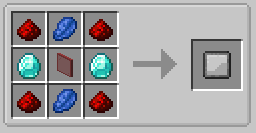
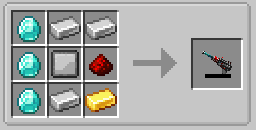
Crafting the Mining Gadget: First, you’ll need to make a blank upgrade module. Then, you’ll use it to craft your mining gadget (along with some other things later). Here’s the recipes:
- In the Blank Upgrade Module recipe, any glass pane can be used for the middle item.
- Mining gadgets can come in 3 styles: M1, M2, and M3. All do the exact same thing, they just look a little different. Shown in the recipe is M2, my personal favorite. To change the recipe to M1, swap the iron and gold ingots at the top right and bottom right. To change the recipe to M3, use gold ingots for both the top right and bottom right.
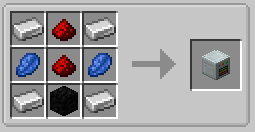
Next, you’ll need to create a Charging Station: (This item is from the “charging gadgets” mod on page 32). Use this recipe:
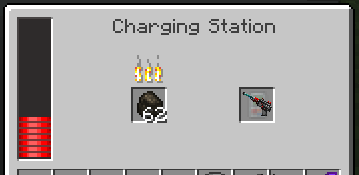
Charging your Mining Gadget: Once you have your charging station placed, you’ll need to use it to charge your mining gadget each time it runs low. Right click the charging station to open it as you would any other usable block. In the left block space, you can put any type of “combustion fuel,” such as coal, wood-made objects, blaze rods, lava buckets, etc. These will automatically convert into energy, which is shown/stored in the bar on the left. At any time, you can then put your mining gadget in the right block space, and it will take the energy that has been stored. You can hover over your mining gadget item to see in number form how much charge it has left.
Using your Mining Gadget: Holding your mining gadget (in your main or left hand), just click or hold the left-click button to destroy like normal. 🙂
Optional: Creating a Modification Table in order to Apply Upgrades: Without upgrades, the mining gadget is still pretty cool… but it’s the best with upgrades applied. Here’s how to make a modification table so you can add upgrades to your gadget:
- In the Blank Upgrade Module recipe, any glass pane can be used for the middle item.
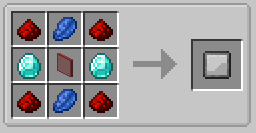
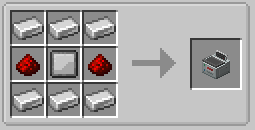
Upgrade List: Here’s a list of upgrades that are pretty darn handy. To learn how to craft them, go in your inventory, go to page 71 in the menu on the right, and right click on them. Note that if an upgrade has multiple tiers, you’ll need to start with tier 1, then use it to craft tier 2, and so on.
- Silk Touch: Gives the gadget silk touch so it won’t utterly destroy anything.
- Void Junk: Lets you filter blocks you want it to delete instead of drop. For example, if you’ve got way too much dirt or cobblestone and don’t want anymore. Or if you really hate granite.
- Magnet: Instead of dropping blocks when mined, they’ll go straight to your inventory (so long as you have room for it).
- 3×3: Mines a 3×3 space instead of 1 blocks at a time. (Note that once you apply this upgrade, you’ll need to open the config menu (see below) and change it to 3×3 to see any difference)
- Light Placer: Automatically places torches (as long as they’re in your inventory) when it gets too dark.
- Freezing: Prevents water and lava from flowing. This one’s a life saver!
- Fortune: Increases your fortune (or the chance of getting more/rare drops).
- Range: Increases range (5 times per tier upgrade!)
- Battery: Increases how much energy the gadget can hold.
- Efficiency: Upgrades speed.
How to use the Modification Table / give your Gadget Upgrades: Right click on the placed modification table (see recipe above) to open it. Place your mining gadget in the slot sticking out to the left. Add all the upgrades you want to give it to the big dark gray area at the top. You can later take them out of the dark gray area if you want to remove them (for example, if you have a tier 1, you can remove it and use it to craft a tier 2, then put it back). Then simply pick your gadget back up off the left.
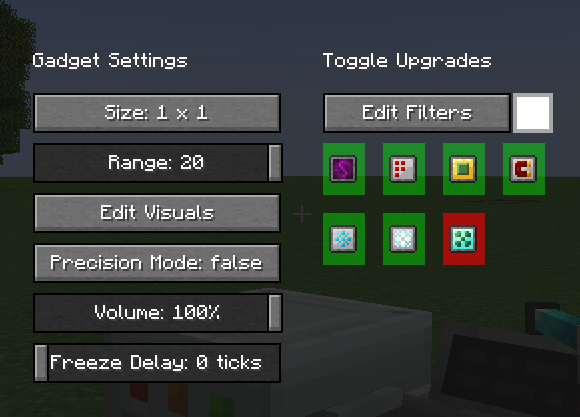
How to open the Configuration Screen / Mining Gadget Menu: Hold the mining gadget, crouch with left shift, and right click. From here, as long as you have the related upgrades given to it, you can adjust…
- Size (1×1 or 3×3 if you have the 3×3 upgrade)
- Range
- Visuals
- Precision Mode (when “true,” you can only destroy 1 set of blocks (either 1×1 or 3×3) per click).
- Volume
- Freeze delay (if you have freezing upgrade)
- Filters (if you have void junk upgrade): Click “edit filters” and add whatever blocks you want it to filter for in the upper section. Note that it considers “dirt block” and “grass block” two different things. Then, back in the config menu, change the color beside the “edit filters” to white or black. “Whitelist” means it will only pick up the things in your filter. “Blacklist” means it will pick up everything but what’s in your filter. Blacklist is the more used.
- Which upgrades are active. In the list shown on the right, click them to toggle whether they are green (active) or red (not active). (Colorblind people, hover over them to see if enabled is true or false!)
That’s it! Now you can go mine the world :]
 Game Board