
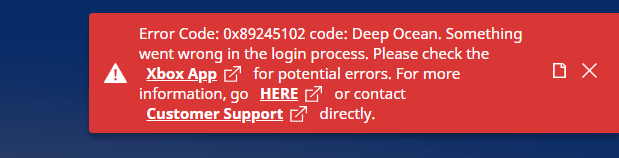
I experienced this error after uninstalling Xbox Gaming Services (which I thought I’d never need and it was being annoying staying open in the background constantly and slowing my computer down). NEVER uninstall gaming services, the repair steps make it completely not worth it in any way shape or form. Anyways, here’s how you fix this!!
<SOURCE> (I am by no means a tech guru this was just the only thing that helped me after 2 hours of trying stuff)
WARNING: If you are receiving this error and can’t think of any reason why, or if you’re receiving a “failed to connect” (or similar) message, you may want to check Mojang’s twitter to see if they’ve posted that the servers are having issues first. If the servers are having issues, wait it out, there’s nothing you can do. Following the below steps are when this issue just won’t go away. It will probably erase all your worlds. Proceed with caution!
STEP 1: Make sure all needed “side apps” have proper settings, then restart your computer and uninstall Minecraft.
- Press the windows button on your keyboard
- Search “Services”
- Right-click on Services app and click “Run as administrator”
- A box will pop up showing things in alphabetical order.
- For each of these items do the following steps…
- Gaming Services
- IP Helper
- XBox live Auth Manager
- XBox live Game Save
- XBox live Networking Services
- Right click on each item (listed above) and click “Properties”
- Look where it says “Start-up type” (about in the middle of the box) and make sure it’s set to automatic. If it is not, change it to automatic, click ok, then do step one (right click and click “properties” again)
- If it is not started, click the Start button then click Ok.
AFTER ALL THAT, Restart your computer, then uninstall the Minecraft Launcher. (To uninstall, press the windows button on your keyboard, click “apps and programs,” scroll down to find Minecraft, click on it, click uninstall.) Before restarting, I recommend bookmarking/starring this page so you can find it again, just until you’ve finished all the steps.
STEP 2: Make sure your computer and all needed apps are *completely* updated.
- Press the windows button on your keyboard and open settings
- Click “Updates and security”
- The “Updates” tab on the left should already be selected (if not, click it). Click “Check for updates.”
- Download/install all listed updates, even the optional ones.
- Also, open the Microsoft Store app (you may have to press the windows button on your keyboard and search for it), and make sure “Xbox” and “Gaming services” are updated. Search each item, click on it, and see if it has an “update” button. If it doesn’t, it’s fine.
- IF you did any updates, restart your computer (yes, again) to make sure all the updates complete and let your computer do its thing. It’ll probably take a while if you had updates available for your computer. Even if it says “Getting windows ready, do not turn off your computer” for forever, give it up to 2-3 hours… just let it do its thing if you need to.
STEP 3: Fix some apps
- Open the Microsoft store and sign out at the top right
- Open the XBox app and sign out at the top left
- Press the start button on your keyboard and open settings.
- Click “apps and programs”
- For both of these items do the following steps…
- Gaming Services
- Xbox
- Click on each of the apps (listed above) and click “advanced options.”
- Scroll down and click “Repair,” then click “Reset.”
STEP 4: Reset & Reinstall
- At the same time, press the windows key and the “R” key.
- In the box that pops up at the bottom left, type in WSReset.exe
- Click ok
- Wait a second for the microsoft store to open
- Open the XBox app and sign back into it, then also sign back into the Microsoft store
- In the Minecraft store search “Minecraft” and click it, it should give you the “Install” option. If it is telling you to buy it again, go back and look for specifically either the Java or Bedrock versions (the Java & Bedrock combined edition is having issues even though you should be able to get it for free if you own either of the single, previous (Java or Bedrock) editions. I read this straight off the Minecraft.net website.) Unfortunately you may just have to download Java or Bedrock if it won’t let you claim the combined version. Also, it is important that your Minecraft account has been converted to a Microsoft account, and that you are logged in to that same Microsoft account in the Microsoft store, otherwise it’ll think you haven’t bought it yet. To convert your account, go to Minecraft.net, log
 Game Board